



windows 10 end of live
Tech365 Customer Guide:
Preparing for the Windows 11 Upgrade
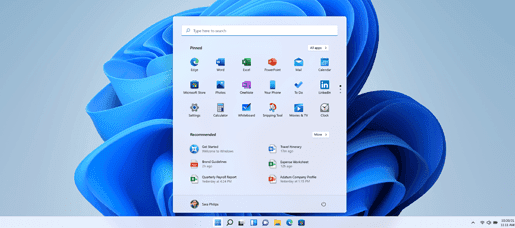
With intuitive navigation and easy organization, Windows 11 has a whole new look, more apps, and efficient ways to be creative and productive.
Windows 11 is a new Windows experience, bringing you closer to what you love.
This guide helps you get ready for Windows 11 and make the move. When you sign in with a Microsoft account, your files and favorites come with you to Windows 11, helping you quickly get back to doing what you love.
Steps to Get Ready for Windows 11
1. Decide which device to use to run Windows 11
Windows 11 can run on PCs that meet the minimum hardware requirements. It might come pre-installed on new PCs, or you might be able to upgrade PCs currently running Windows 10.
Note: Some Windows 10 features aren’t available in Windows 11. System requirements to experience some Windows 11 features and apps might exceed the Windows 11 minimum system requirements. Find Windows 11 specs, features, and computer requirements.
To check if your current Windows 10 PC can run Windows 11, download the PC Health Check app once it becomes available. Download PC Health Check.
For more about system requirements, see Windows 11 specs, features, and computer requirements.

2. Set up your Microsoft account to transfer files and favorites
One account connects your device across Microsoft apps and services like Microsoft 365, OneDrive, Microsoft Edge, and Microsoft Store. When you sign in with a Microsoft account on your new Windows 11 device, your files and data come with you.

Create a new Microsoft account
Check if you have a Microsoft account
3. Back up your files
By default, your files and data transfer to your new PC. We recommend you back up your files before you install Windows 11. To learn how, see Backup your Documents, Pictures, and Desktop folders with OneDrive.
You can also find specific instructions for transferring files from Windows 7 and Windows 8.1 PCs. See Move files off a Windows 7 PC with OneDrive and Move files off a Windows 8.1 PC with OneDrive.
4. Install Windows 11

Once the Windows 11 upgrade is tested and validated for your specific PC, Windows Update indicates that it’s ready for installation.
To check if Windows 11 is ready for your device:
- Right-click the Start menu.
- Select Settings.
- In the Windows Settings window that opens, select Update & Security.
- In the Windows Update window, select the Check for updates button.
Or
1. Select the following Windows Update shortcut:
In the Windows Update window that opens, select the Check for updates button.
If the upgrade is available for your device and you want to proceed, download and install it.
Note: Downloading and installing Windows 11 usually takes longer than a typical Windows 10 feature update. You can use your PC while Windows 11 downloads. Additionally, the install can be scheduled to happen at a specific time when you aren’t planning on using your PC.
Why Choose Tech365 for Your Windows 11 Upgrade?
What Sets Us Apart?
Customer-Centric Approachh
We prioritize your unique needs, ensuring an exceptional upgrade experience tailored to you.at Sets Us Apart?
A Trusted Partner for Seamless Upgrades
Proven Expertise
With years of experience in tech solutions, Tech365 is a name you can trust for smooth, worry-free Windows 11 upgrades.
Transparent Communication
We keep you informed every step of the way, building trust and confidence in our ability to deliver unparalleled service.

Expert guidance for installation and setup.
Receive step-by-step assistance from Tech365’s experts to ensure a seamless Windows 11 installation and configuration for your device.
Device recommendations tailored to your needs
Providing personalized device recommendations, helping you choose the perfect PC that meets Windows 11’s requirements and your preferences.
Ongoing support to help you make the most of Windows 11 features
Access continuous support to explore Windows 11’s features, boosting your productivity and enhancing your experience with its tools and apps.
Frequently Asked Questions
Can I upgrade for free?
Upgrades to Windows 11 from Windows 10 will be free. Due to the size of the download, however, ISP fees may apply for downloads that occur over metered connections.
When will Windows 11 be available for my current Windows 10 PC?
Once Windows 11 has been tested and validated for your specific PC, Windows Update will indicate that the upgrade is ready for installation.
To see if your PC is eligible, download the PC Health Check app.
What will happen to my files during the upgrade?
The default experience will be for files and data to move forward with the new installation. However, we always recommend that you back up files before installing a new Windows version. If you already sync your files to OneDrive, you may not need to take any additional action to create a backup.
How will I know if my PC qualifies for the upgrade?
You can use the PC Health Check app to determine if your PC can upgrade.
Download the PC Health Check app.
To see if your PC is eligible, download the PC Health Check app.
Will Windows 11 work with my current accessories?
Most software and accessories that worked with Windows 10 are expected to work with Windows 11. Check with your software publisher or accessory manufacturer for specific details on your products.
What are the minimum hardware requirements for Windows 11?
How long does it take to upgrade to Windows 11?
Timing will vary, particularly based on internet speed. Downloading and installing Windows 11 will most likely take longer than a typical Windows 10 feature update. You can use your PC while you’re downloading it and then you have the option to schedule the install to happen at a specific time when you aren’t planning on using your PC.
How can I get ready for Windows 11?
Once you’ve determined which PC you’ll use to run Windows 11, you’ll want to ensure you’re signed in with a Microsoft account and that your files and folders are backed up to OneDrive. Your files will then transfer by default to your Windows 11 device.
For more info on preparing for Windows 11, see Getting ready for the Windows 11 upgrade.
Why do I see a “What needs your attention” message when I try to upgrade?
If you see this type of message, you may be trying to upgrade a PC that does not meet the minimum system requirements for Windows 11. For more info, see Installing Windows 11 on PCs that don’t meet minimum system requirements.
Can I move back to Windows 10 after I upgrade my Windows 10 PC if I don’t like Windows 11?
Yes, once you have upgraded to Windows 11, you have 10 days to move back to Windows 10 while keeping files and data that you brought along with you. After that 10-day period, you will need to back up your data and do a “clean install” to move back to Windows 10.
Upgrade to Windows 11 with Confidence!
Transform your experience with Windows 11 today! Trust Tech365 for expert guidance, tailored solutions, and ongoing support. Let us make your upgrade seamless and stress-free. Get started now!